


Welcome to the quick help center! To send questions or feedback to the CODAworx team, use the chat bubble below.
Tap the question mark again to hide.
Tap the question mark again to hide.
Art Opportunities
Looking for our public art project opportunity listings?
Click here
See below for brief guides on:How to Apply to an opportunity
We recommend reading the commission document for any opportunity listing on our site prior to applying. Sometimes, commissioners post opportunities on CODAworx and accidentally set them to accept applications on our site, even when they have portal on a different website.
Opportunities hosting applications on CODAworx will ask for samples of existing artworks. You can enter CODAworx projects - draft or published - as worksamples. You can also upload new worksamples when you apply to opportunities. Worksamples uploaded this way will be saved on your profile as Draft Projects.
Tap here for our guide on How to Apply to Opportunities.How to Post an opportunity
Art commissioners can post opportunities on CODAworx for free. Commissioners can specify whether they want to accept applications on CODAworx, or direct applicants to an external link of their choosing.
To post a Public Art Opportunity, be sure you are signed in to an account, and visit Hire > Post a Call using the menu in the header.
If you would like to publish an opportunity on a specific future date, select that date as your application "Open Date", fill out the rest of the form, and select "Publish" at the very last step. If you don't select "Publish", your call will remain in Draft mode.
Tap here for our full Opportunity Posting GuideHow to Jury an opportunity
Artwork opportunities that accept applications on CODAworx have built-in committee jurying.
Jurying on CODAworx is round-based. Ideally, the field of candidates will be progressively narrowed down to finalists over multiple rounds.
Commissioners accepting applications on CODAworx for Free only can have one scoring round and one juror. Paid toolkit users can have unlimited jurors and unlimited scoring rounds.
If you've sent your juror an invite to review candidates, and they say they can't see the applications, here are some basic troubleshooting steps
-Add them to the scoring round from the jury pool
-Make sure your juror is logging on to CODAworx with the same email address you used in their jury invitation.
-Make sure your juror doesn't say "Removed" or "Deleted". You can reinstate a removed juror by selecting the the menu to the right of their name on the "Selection Process" tab of your Open Call.
If you are a juror on CODAworx, here is the full guide for jurors.
If you are in charge of a juror panel using CODAworx
here is the full guide for you.
Projects
Published projects are searchable in the project library.
Basic members can publish THREE projects.
Basic+ members can publish SIX projects.
Pro members can publish THIRTY projects.
Premium members can publish UNLIMITED projects.
All CODAworx members can create UNLIMITED draft projects.How to Post a Project
Make sure you are signed in and click the "Upload Project" button in the header to get started.
Our project posting form contains five steps-
Overview, Project Gallery, Location, Team & Category/Tags.
Each step has required fields marked with an asterisk *.
You can use the "Save and Exit" or "Save and Continue" buttons on the right hand side of the footer on the Project Uploader to save your project, provided you've filled out all of the required fields on the current step of the uploader form.
The "Back" button on the left hand side of the footer does not save your inputs.How to Edit a Project
To edit a published project, go to your profile and click the pen icon in the lower right corner of your project. Select "Move to Editable Draft".
Once your project is in Draft mode, click the pen icon again on your project to return to the project uploader form, where you can edit or add information as needed, and publish your project again when ready.
Draft projects can be edited freely.How to rearrange projects on your profile (Upgraded Members Only)
Projects show up on your public-facing profile in the order of most recently published to least recently published. To bring a project to the top of the list, move your project from a published state to a draft state, and republish it on your profile page.
Click here for an extended guide on how to rearrange projects on your profile.
Directories
At its core, CODAworx is a directory service for the world's creative economy.
Each directory has filters. For filters to work, be sure and click "Apply" at the bottom of the input after selecting your filter criteria.
Here is information on our three main directories-Project Library
Projects published by CODAworx members live in the Project Library. At any given time, thousands of projects are searchable.
You can filter your project library search results based on Type of Artwork, Purpose, Setting, Theme and Budget.Creative Directory
Find members of the CODAworx community in the Creative Directory.
CODAworx members with profiles will show up. You can sort by Artist, Commissioner and Industry Resource, and filter further by types of work - like Ceramics, Sculpture and Photography.Open Call listings
Tap here to visit the Open Opportunity listings on CODAworx.
If you are not signed in, you will be prompted to sign in after a minute on the Open Call listing page.
Our Open Calls page hosts opportunities from around the world. Some accept applications on CODAworx, some do not. Please read an opporunity carefully before applying.
You can toggle between table and tile views on the opportunities page, and also sort by deadline, date added and more.
Accounts & Settings
To adjust your profile settings, be sure you are signed in, and click your profile icon in the upper right hand corner. You will see "Account Settings" as the first option.
Here are the most common items you may want to change in your settings.Passwords
To change your password, be sure you are signed in, and on the settings page. The password changer lives in the Account Overview tab, which is selected by default.
After tapping the password changer, you'll be redirected to a verification screen where you enter your email and send a verification code.
You should receive your verification code to your email within a minute. Enter the code and select "Verify Code". Select "Continue" on the next step. Do not select "Change e-mail".
You will be prompted to create your new password, with these requirements:
8-16 characters, containing 3 out of 4 of the following: Lowercase characters, uppercase characters, digits (0-9), and one or more special characters.
After you create your new password, and confirm it, you will be directed to sign in with it.Profile Information + Professional Details
After making any changes to your profile information, be sure to scroll down and click the "Update Profile" button to save your changes.
If you want to set a custom display name, like a company name, enter it into the "Company, studio or organization name to be listed in the Creative Directory" input box.
The Profile Information section lets you write a Short Bio ("Briefly describe your role in the public art industry") and a Full Bio. Your Short Bio will show up on your profile. Your Full Bio will show up on Open Call applications hosted by CODAworx.
Phone, Website, Physical Address and Social Media URLs are all optional.
The professional details section lets you select and display your specialized work areas- You can select specialities for Artists (including but not limited to Murals, Sculpture, Digital Art), Art Commissioners (Education, Healthcare, Public Art Agency etc.) and Industry Resource (Engineering, Installation, Fabricators and Foundries).Privacy & Notifications
The "Profile Privacy" section will show or hide your listing from the Creative Directory. Upgraded members get enhanced listings and priorty placement in search results.
Flip the switch to green to make your listing visible, and back to gray to hide your listing from the Creative Directory.
The "Notifications and Preferences" section allows you to opt in or opt out of notification messages from CODAworx. Some email announcements and newsletters from CODAworx will require a separate opt-out, which you will be able to set from a link in the email.
CODAsummit:
Art, Technology and Place
September 29 - October 1, 2026
Santa Fe, NM
Art, Technology and Place
September 29 - October 1, 2026
Santa Fe, NM
Join us in Santa Fe!
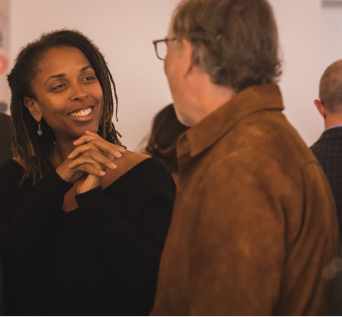
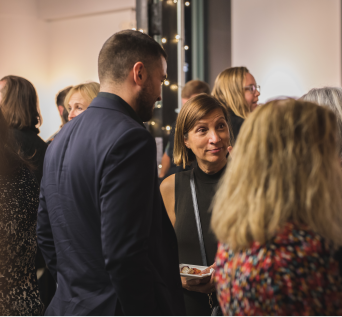
CODAworx invites you to join us in Santa Fe, a city where art, culture, and landscape converge—an international destination shaped by centuries of creative exchange and contemporary experimentation. Set against a backdrop of historic plazas, Indigenous traditions, and a thriving arts ecosystem, Santa Fe is a place where conversations about place, identity, and the future feel both grounded and expansive. Hosted by the New Mexico Department of Cultural Affairs and New Mexico Arts, CODAsummit is the place where all of the players in the public art industry come together to meet and learn from one another, to share insights and resources, to conduct business, and to figure out how we even talk about this new world.
Our gathering introduces commissioners to leading artists working at the intersection of technology and placemaking, while also providing successful commissioning models for inspiration. And because art + technology projects require collaboration in the truest sense of the word, artist teams learn from the expertise of specialty fabricators, technology companies, engineers, and a wide network of essential partners. CODAsummit is all about connections that lead to opportunities.
Our gathering introduces commissioners to leading artists working at the intersection of technology and placemaking, while also providing successful commissioning models for inspiration. And because art + technology projects require collaboration in the truest sense of the word, artist teams learn from the expertise of specialty fabricators, technology companies, engineers, and a wide network of essential partners. CODAsummit is all about connections that lead to opportunities.
We come together to talk, not about the past, but how we imagine the future. Shouldn't you be there?
Super Early Bird: Save $200 on Registration when you register by March 31!

Partner Hotels:
Follow the links below to book at our special discounted rate for conference attendees. Discounted rates are available until September 2nd, or until reservations are fully booked.
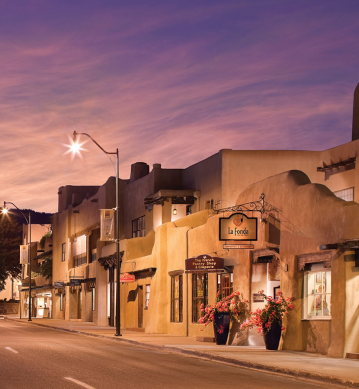
La Fonda on the Plaza
100 E San Francisco St, Santa Fe, NM 87501 With a stay at La Fonda on the Plaza, you'll be centrally located in Santa Fe, a 1-minute drive from Santa Fe Plaza and 8 minutes from Meow Wolf. This historic hotel is 0.1 mi (0.1 km) from Institute of American Indian Arts and 0.1 mi (0.1 km) from Museum of Contemporary Native Arts.
Phone Reservations: Call (202) 488-2500 and ask for the “CODAworx Room Block”
The La Fonda will be the primary location for CODAsummit. Rooms are very limited, so book now to be as close as possible to the action!
Phone Reservations: Call (202) 488-2500 and ask for the “CODAworx Room Block”
The La Fonda will be the primary location for CODAsummit. Rooms are very limited, so book now to be as close as possible to the action!
"CODAsummit was an absolute delight. I made new friends, found possible solutions to my challenges and left invigorated with increased assurance that my future is bright, and our work as a community is the wave of the future."
— Matthew Mohr, Artist + Chair of Advertising & Graphic Design, CCAD
There is magic in the air.
Ready to connect at CODAsummit?
“...It's a fact that the life of this project and the reality of my emerging public art career have centered upon and come out of the many many amazing experiences and friendships I have made at CODAsummit and through CODAworx”
— Nikolas Soren Goodich, Luminous Community Center
SPECIAL THANKS TO OUR SPONSORS
Interested in being a CODAsummit sponsor?
Contact us at hello@codaworx.com to get started.